






Key takeaways
- Single page applications (SPAs) update content without a document reload. So GTM’s Container Load trigger fires only once on the first route the user lands on.
- GA4’s Enhanced Measurement setting “Page changes based on browser history events” catches most route changes automatically, but frequently records the previous page title.
- GTM’s built-in History Change trigger fires on pushState, replaceState, popstate, and hash changes. Which means it also fires on modals, filters, and tab switches you don’t want counted.
- The most reliable method is a custom dataLayer push from your router. (React Router, Angular Router, Vue Router)Fired after the new title and content render.
- Double counting is the most common SPA tracking bug. If you send manual page_view events, disable automatic history tracking or unset send_page_view.
- Route changes also break scroll depth, element visibility, and click triggers, not just page views.
- Broken SPA tracking corrupts A/B test data before it reaches your testing tool’s reports, which makes every downstream decision suspect.
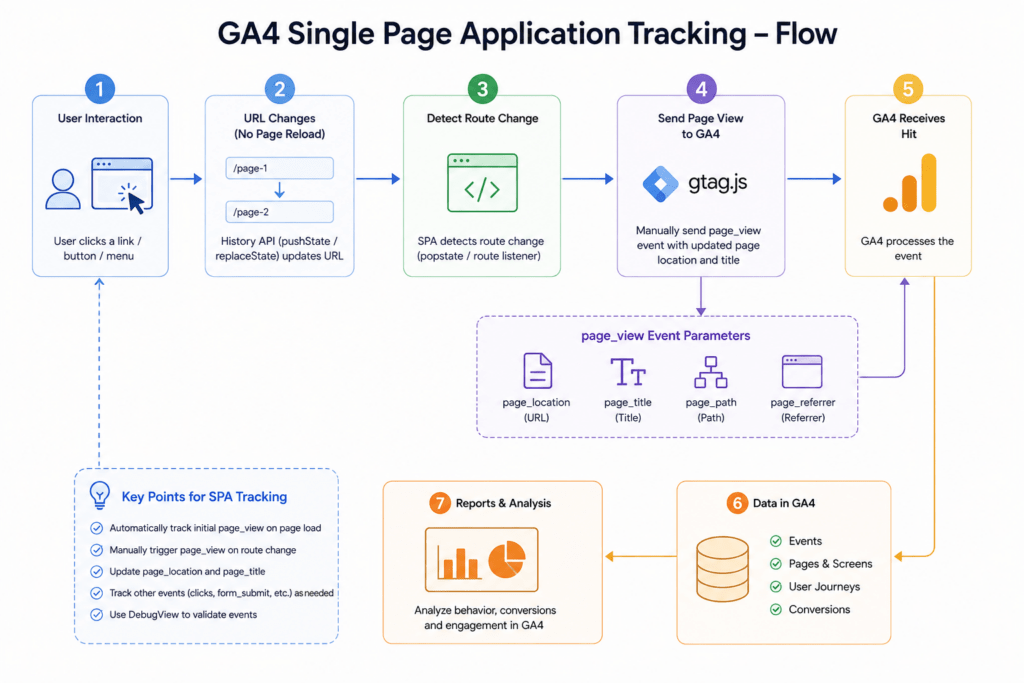
Why does GA4 pageview tracking fail on single page application?
A single page application loads one HTML document. Then rewrites content in place using JavaScript. The browser never issues a new document request, so GTM’s Container Load trigger and GA4’s default page_view event fire exactly once. Every subsequent “page” the user sees goes unrecorded.
A single-page application is a website that loads a single HTML document. Updates the visible content dynamically via JavaScript, rather than requesting a new document from the server for each view.
The mechanism behind this is the browser History API. Frameworks like React, Angular, Vue, Svelte, and Next.js call history.pushState() to change the address bar without triggering navigation. The URL updates. The DOM updates. The load and DOMContentLoaded events do not fire again.
What does that mean in practice:
| Signal | Traditional multi-page site | Single page application |
| DOMContentLoaded on route change | Fires | Does not fire |
| GTM Container Load trigger | Fires per page | Fires once per session start |
| GA4 automatic page_view | Fires per page | Fires once (plus history events, if enabled) |
| document.referrer | Updates per page | Stays at the original entry referrer |
| Scroll depth trigger | Resets per page | Fires once, then never again |
| Session duration accuracy | Reliable | Inflated or deflated depending on setup |
The symptom most teams notice first: sessions with one page view and a suspiciously long engagement time. Users are clearly navigating, but GA4 reports a single landing page and nothing else.
Does GA4 track SPA route changes automatically?
Partly. GA4’s Enhanced Measurement includes a setting called Page changes based on browser history events. Which is enabled by default. It listens for History API changes and fires an additional page_view. It works for URL-based routing, but it commonly captures a stale page_title and does not fire when only the hash changes in some configurations.
Where the automatic setting breaks down in Single Page Application
- Stale page titles. GA4 reads document.title at the moment the history event fires. Most frameworks update the title after the route transition completes, so the event carries the previous view’s title. Your reports show correct paths mapped to wrong titles.
- Over-firing on non-navigation state changes. Any component that pushes state for a filter, modal, accordion, or tab records a pageview.
- No control over parameters. You cannot add custom dimensions, clean query strings, or set an accurate page_referrer before the hit is sent.
- Hash-only routing gaps. Older Angular and Vue hash-mode routers (/#/checkout) behave inconsistently.
Where to find the setting:
GA4 Admin → Data Streams → your web stream → Enhanced measurement → gear icon → “Page changes based on browser history events.”
If you only need directional data and your app updates titles synchronously, leaving this on is acceptable. If page titles feed your reporting, or you’re using pageviews as A/B test goals, move to manual tracking.
How do you track SPA pageviews with the GTM History Change trigger?
Create a History Change trigger in GTM and attach it to a GA4 Event tag named page_view, passing page_location and page_title manually. The trigger fires on pushState, replaceState, popstate, and hashchange, so add exception conditions to filter out state changes that aren’t real navigations.
Step-by-step setup
- Create the trigger. Triggers → New → Trigger Configuration → History Change. Set it to fire on Some History Changes so you can add conditions.
- Add exclusion conditions. Common ones:
- History Source does not equal hashchange (excludes anchor jumps)
- New History Fragment does not contain modal
- Page Path does not match RegEx ^/(checkout/step-[0-9]+)$ if those are handled separately
- Create a GA4 Event tag. Event name: page_view. Add event parameters:
- page_location → {{Page URL}}
- page_path → {{Page Path}}
- page_title → {{Page Title}}
- page_referrer → a custom variable holding the previous URL
- Prevent double counting. In your Google Tag (GA4 Configuration), either uncheck automatic history tracking in Enhanced Measurement, or set the field send_page_view to false and fire your own page_view on Container Load and History Change.
- Validate in GA4 DebugView, not just GTM Preview. GTM Preview confirms the tag fired; DebugView confirms GA4 received the correct parameters.
The title timing problem
{{Page Title}} resolves at trigger time. If your framework sets the title after the route commits, you capture the old title. Two workarounds:
Option A — delay the tag. Add a Custom HTML tag on History Change that waits, then pushes a clean event:
<script>

  (function () {

    var attempts = 0;

    var initialTitle = document.title;

    var check = setInterval(function () {

      attempts++;

      if (document.title !== initialTitle || attempts > 20) {

        clearInterval(check);

        window.dataLayer.push({

          event: 'spa_page_view_ready',

          page_title: document.title,

          page_location: window.location.href,

          page_path: window.location.pathname + window.location.search

        });

      }

    }, 100);

  })();

</script>
This is a workaround, not a fix. It fails when two consecutive routes share the same title, and the polling adds up to two seconds of latency.
Option B: Push from the app. Preferred. Covered in the next section.
Deduplication caveat in SPA Tracking
A common recipe is a Custom JavaScript variable that stores the last tracked path in a closure and returns false on repeats. Be aware that GTM may evaluate a variable more than once per event, so a variable that mutates global state can produce inconsistent results. Handle deduplication in your application code or with trigger conditions instead.
The most reliable way to track Single Page Application page views?
Push a custom event to the dataLayer from your router’s navigation-complete hook, after the title and content have rendered. Fire a GTM Custom Event trigger on it. This gives you exact control over timing, parameters, and which state changes count as pageviews, the three things History Change triggers can’t guarantee.
A virtual pageview is a manually fired analytics event that represents a content view in a single page application, sent in place of the browser-initiated pageview that never occurs.
React Router (v6+)
<script>

  (function () {

    var attempts = 0;

    var initialTitle = document.title;

    var check = setInterval(function () {

      attempts++;

      if (document.title !== initialTitle || attempts > 20) {

        clearInterval(check);

        window.dataLayer.push({

          event: 'spa_page_view_ready',

          page_title: document.title,

          page_location: window.location.href,

          page_path: window.location.pathname + window.location.search

        });

      }

    }, 100);

  })();

</script>
Set the title inside the same effect so the value you push is guaranteed to match what the user sees.
Angular Router
import { Router, NavigationEnd } from '@angular/router';

import { Title } from '@angular/platform-browser';

import { filter } from 'rxjs/operators';

constructor(private router: Router, private titleService: Title) {

  let previousUrl = document.referrer;

  this.router.events

    .pipe(filter((e): e is NavigationEnd => e instanceof NavigationEnd))

    .subscribe((event) => {

      (window as any).dataLayer = (window as any).dataLayer || [];

      (window as any).dataLayer.push({

        event: 'virtual_page_view',

        page_location: window.location.href,

        page_path: event.urlAfterRedirects,

        page_title: this.titleService.getTitle(),

        page_referrer: previousUrl

      });

      previousUrl = window.location.href;

    });

}
NavigationEnd fires after redirects and guards resolve, which is the correct moment — NavigationStart would capture routes the user never reaches.
Vue Router
let previousUrl = document.referrer;

router.afterEach((to, from) => {

  document.title = to.meta.title || document.title;

  window.dataLayer = window.dataLayer || [];

  window.dataLayer.push({

    event: 'virtual_page_view',

    page_location: window.location.href,

    page_path: to.fullPath,

    page_title: document.title,

    page_referrer: previousUrl

  });

  previousUrl = window.location.href;

});
Next.js App Router
The App Router uses pushState under the hood. Track with usePathname and useSearchParams in a client component, wrapped in a Suspense boundary to avoid deopting the route to client rendering.
GTM configuration for the custom event
- Variables → create Data Layer Variables for page_location, page_path, page_title, page_referrer.
- Trigger → Custom Event, event name virtual_page_view.
- Tag → GA4 Event, event name page_view, parameters mapped to the four variables above.
- Google Tag → set send_page_view to false, and fire your own page_view on Container Load too so the entry page is counted once.
- Enhanced Measurement → turn off “Page changes based on browser history events.”
How do the three Single Page Application tracking methods compare?
| GA4 Enhanced Measurement | GTM History Change trigger | Custom dataLayer push | |
| Engineering effort | None | Low (GTM only) | Medium (app code change) |
| Control over timing | None | Limited | Full |
| Accurate page_title | Unreliable | Unreliable without polling | Reliable |
| Accurate page_referrer | No | Partial | Yes |
| Filters non-navigation state changes | No | Partially, via conditions | Yes |
| Supports custom dimensions | No | Yes | Yes |
| Survives framework upgrades | Yes | Yes | Needs review |
| Recommended for | Directional reporting only | Sites where dev resources are blocked | Production analytics and experimentation |
Decision rule: In a Single Page Application, if page views feed conversion goals, funnels, or A/B test metrics, use the custom dataLayer push. If you need something live this afternoon and no developer is available, use the History Change trigger with exclusions.
Do you know why it breaks in GTM on a single page application?
Pageviews not tracking in SPA are the visible failure. Several other GTM mechanisms depend on document load and silently stop working after the first route.
| Feature | Failure mode | Fix |
| Scroll Depth trigger | Fire thresholds once, never resets | Fire a custom scroll_reset event on route change; use your own scroll listener |
| Element Visibility trigger | Set to “Once per page,” it stops after route one | Change to “Every time element appears” |
| Click triggers on new DOM nodes | Work via delegation, but selectors break on re-render | Use stable data-* attributes, not generated class names |
| Form Submit trigger | SPA forms often prevent default submission | Track the framework’s submit handler with a dataLayer push |
| Custom HTML tags | Run once; DOM they target may not exist yet | Add a MutationObserver or fire on the virtual pageview event |
| document.referrer | Frozen at entry | Pass page_referrer manually |
The same re-render problem affects client-side A/B testing tools. A variation applied on initial load disappears when the router swaps the component out. Reliable SPA experiments need a MutationObserver or a route-change hook that reapplies the change — and the analytics events described above so the results are attributed to the right view.
Here’s how you validate that Single Page Application tracking is working
SPA Tracking in GA4 Test in three layers:
GTM Preview confirms the tag fired
GA4 DebugView confirms the parameters arrived
Realtime confirms the events are processed.
Navigate at least four routes, plus a browser back button press, and check for duplicate page_view Events with identical timestamps.
Validation checklist:
- One page_view per route change — no duplicates, no gaps
page_titlematches the title the user actually sees on that routepage_pathexcludes noise parameters like session IDs and tracking tokens- page_referrer shows the previous internal URL, not the original external referrer
- Browser back and forward buttons each produce exactly one page_view
- Modal opens, filter changes, and tab switches produce zero page_view events
- Hash-only anchor links produce zero page_view events
- Entry page counted once, not twice (the classic Container Load + History Change overlap)
- Scroll depth events fire on routes two, three, and four
- Landing page report in GA4 shows more than one distinct page per multi-route session
Run the same checks on a slow connection. Race conditions between route transitions and title updates surface under throttling that never appear on a fast local build.
To maintain ongoing data quality, analytics engineers execute a three-stage SPA GA4 Tracking validation workflow:
- Google Tag Manager Preview Mode is utilized to verify that native history change events are suppressed and custom
virtual_page_viewevents fire in correct chronological order. - Browser Developer Tools Network inspection monitors outbound
/g/collect requests, verifying that event names(en=page_view), location URLs (dl), document titles (dt), and custom dimensions populate without missing values. - GA4 DebugView provides real-time server-side validation within the Google Analytics Admin console, confirming parameter parsing, session continuation, and event conversion settings.
Frequently asked questions
- Should I use page_view or a custom event name for virtual page views?
Use page_view. GA4 populates its Pages and Landing Page reports from the page_view event specifically. A custom name like virtual_pageview will not appear in those reports. It cannot be used as a Landing Page dimension. Name the dataLayer event whatever you like; the GA4 event name must be page_view.
- Will manual tracking cause double counting?
Yes, for Single Page Application if you don’t disable the automatic sources. Turn off “Page changes based on browser history events” in Enhanced Measurement, and set send_page_view to false on the Google Tag so the initial load is counted by your own tag only.
- Does GA4 session tracking work correctly in SPAs?
Session start and engagement time work normally, since they’re driven by the GA4 script rather than document loads. The metrics that break are those derived from pageviews, pages per session, landing pages, exit pages, and page-scoped conversion rates.
- Do I need to change my GA4 configuration for hash-based routing?
Yes. Hash changes fire hashchange, not pushState, and GA4’s automatic history tracking handles them inconsistently. A custom dataLayer push from the router is the dependable option for hash-mode apps.
- How does this relate to iframe tracking problems?
Both stem from the same root cause. GTM‘s defaults assume one document per view. An iframe is an extra document GTM doesn’t own. An SPA route is a view without a document. Both require abandoning the default trigger and listening for an explicit signal instead postMessage for iframes, History Change or a dataLayer push for SPAs.
Implementation summary
- Pick your method: custom dataLayer push if you have dev access, or History Change trigger if you don’t.
- Fire from a post-navigation hook (NavigationEnd, afterEach, useEffect on location) after the title is set.
- Send a GA4 page_view event with page_location, page_path, page_title, and page_referrer.
- Disable automatic history tracking and send_page_view to prevent duplicates.
- Fix the collateral damage: scroll depth resets, element visibility “every time,” stable click selectors.
- Validate across four-plus routes, back button, and throttled network before shipping.