If you are managing analytics through Google Tag Manager (GTM), the way you configure your event tracking dictates how reliable your data will be. Many websites fall into the trap of using CSS selectors to track user interactions, but this creates a fragile system that is prone to breaking.
Key Takeaways
- Tracking based on CSS selectors breaks silently whenever class names, form structure, or third-party forms change.
- With data-layer tracking, developers push named events and parameters on purpose, and GTM only listens for them.
- One generic catch-all GA4 event tag can replace dozens of separate tags.
- Fanorate uses this setup for events such as
virtual_page_view,widget_eng_open,widget_eng_stats,andsearch_no_results.
What Is Data-Layer Event Tracking?
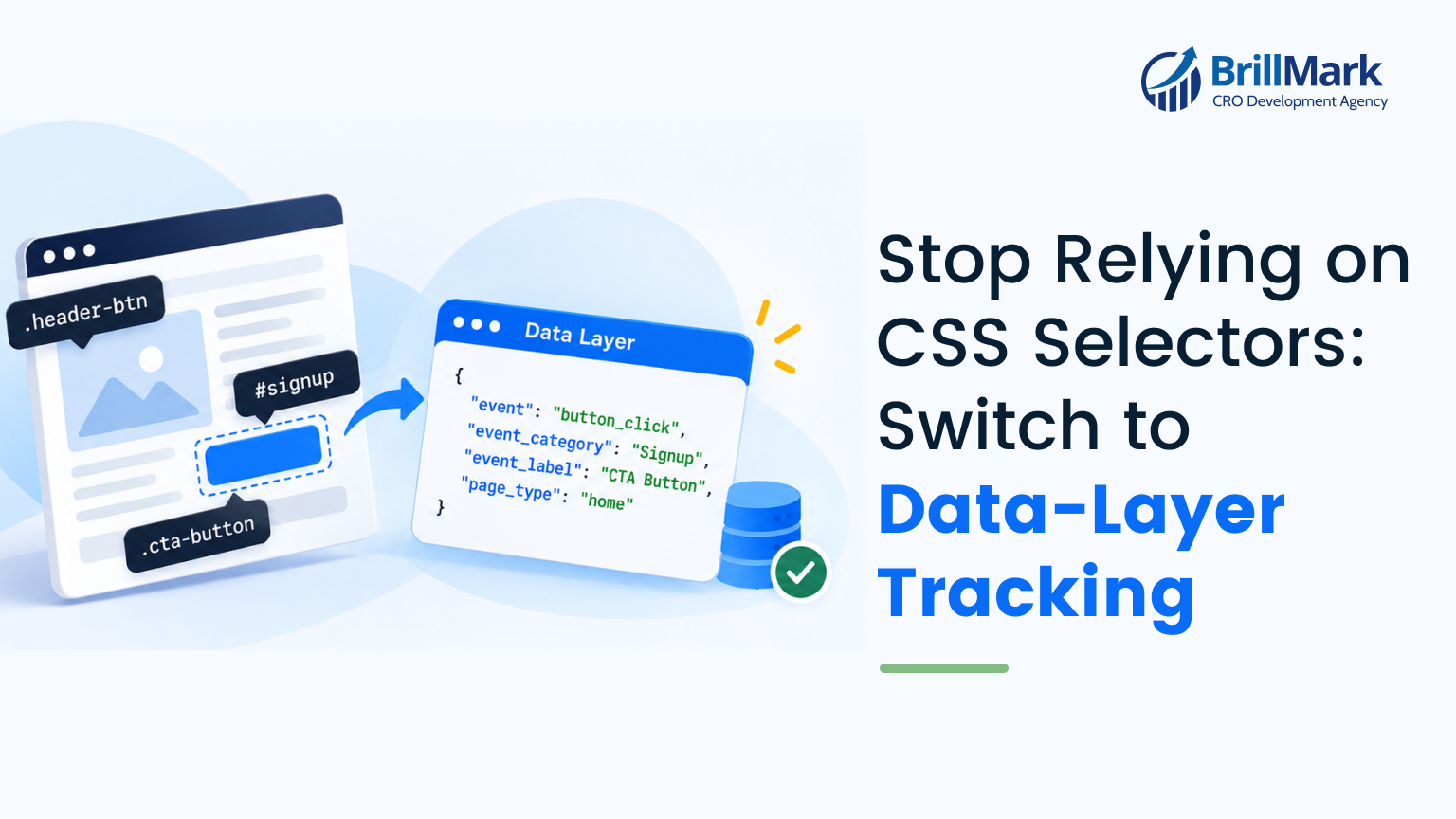
Data-layer event tracking is a GTM setup where the website’s code pushes structured events, such as form_submit or search_no_results, into a JavaScript array called window.dataLayer. GTM listens for those event names and forwards them, with their parameters, to GA4. Because tracking is driven by events the site sends on purpose, it does not depend on scraping the page’s HTML. That means design changes do not break it.
The Problem with CSS Selectors
Currently, many GTM setups rely heavily on CSS selectors to track clicks and form submissions. This is a disconnected approach. Whenever a website update goes live, the tracking is at risk. If a developer modifies a form’s structure, changes a class name, or installs a new third-party form, the CSS selector in GTM will stop matching the website.
The result? Tracking silently breaks. Someone has to manually go into GTM and update CSS selectors whenever something changes.
The Data-Layer Solution
A much more reliable mechanism—which was successfully implemented for projects like Fanorate—is data-layer event tracking. Instead of GTM “guessing” what a user is clicking based on the page’s design, the website’s developers proactively push structured events directly into the data layer whenever an important interaction occurs. GTM then simply listens for these specific data-layer events and forwards them to GA4.
Key interactions to push to the data layer include:
- Form interactions and submissions
- Navigation clicks
- Hero-section CTA clicks
- Other important user interactions
How Does CSS Selector Tracking Compare to Data-Layer Tracking?
Data-layer tracking is more stable, easier to maintain, and captures richer data than tracking based on CSS selectors.
| Factor | CSS Selector Tracking | Data-Layer Event Tracking |
| Breaks on redesign | Yes, often silently | No, as long as the push stays in code |
| Who owns it | GTM admin guessing from the page’s HTML | Developers define events on purpose |
| Custom parameters | Limited to what can be read from the page | Any value the site knows (search term, source, form ID) |
| Third-party forms | Often hard or impossible to track | Tracked through callbacks or events the form provides |
| Number of GTM tags | One tag per interaction | One generic catch-all tag |
| QA effort | Recheck after every site release | Check the event list once and monitor |
Real-World Examples from Fanorate
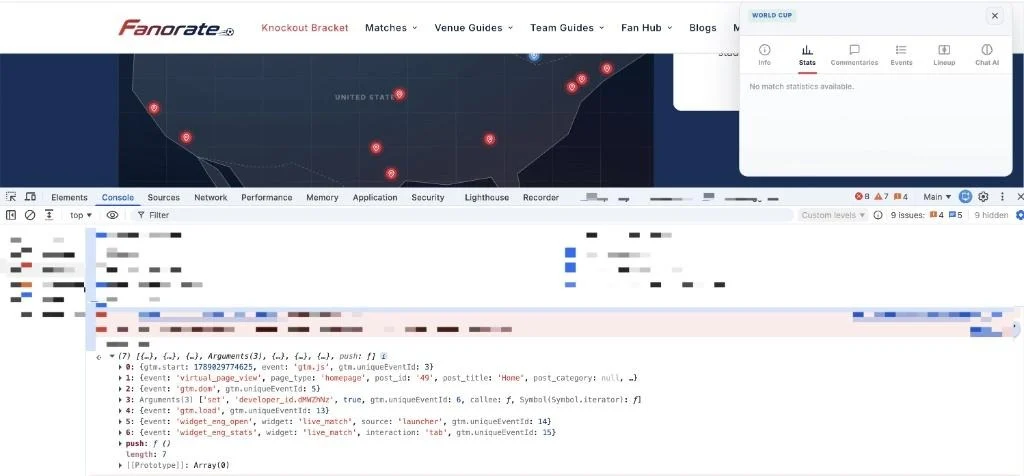
In the Fanorate setup, this architecture provides complete clarity. As shown below, the data layer captures precise custom events such as virtual_page_view, widget_eng_open, and widget_eng_stats, along with granular parameters.
[Image alt text: GTM preview mode showing Fanorate data layer events virtual_page_view, widget_eng_open, and widget_eng_stats with parameters]
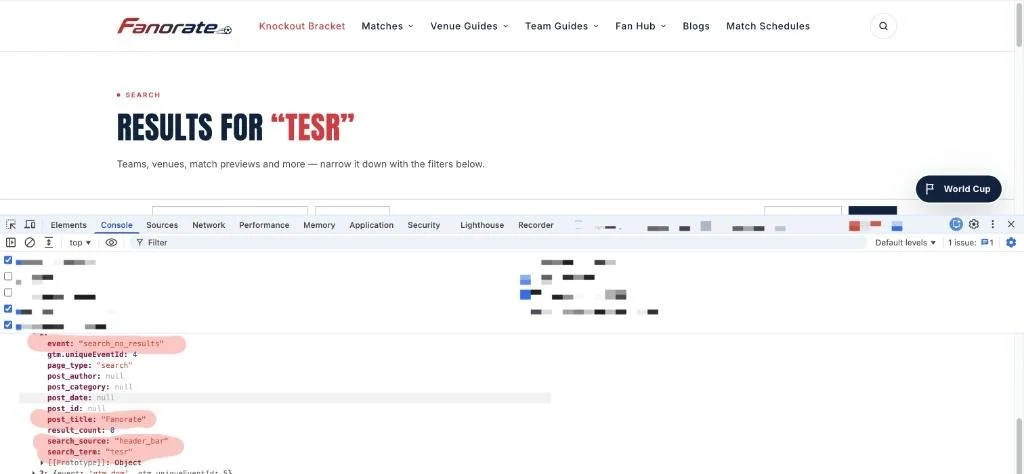
Likewise, the following image demonstrates how a search_no_results event passes the exact search term (“test”) and the search source (“header_bar”) directly to GTM. This is far more robust than attempting to scrape the DOM for search result text.
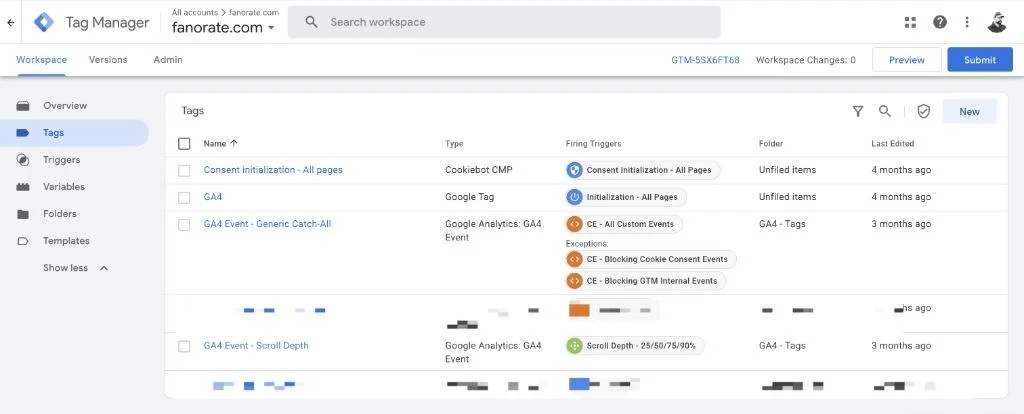
Furthermore, this structured approach simplifies your GTM container immensely. As shown below, the Fanorate workspace uses a single “GA4 Event – Generic Catch-All” tag. Because the data layer already contains the exact event names and parameters, this single tag automatically listens for all custom events and passes them perfectly to GA4. This eliminates the need to create dozens of individual, brittle tags for every minor interaction.
What Does a Data-Layer Push Look Like?
A data-layer push is a single JavaScript call that sends an event name and its parameters to GTM. Here is how a search that returns no results could be pushed:
javascript
window.dataLayer = window.dataLayer || [];

window.dataLayer.push({

  event: 'search_no_results',

  search_term: 'tesr',

  search_source: 'header_bar'

});
The event key is what GTM listens for. Every other key becomes a parameter that GTM can read with a Data Layer Variable and send to GA4.
How Do You Implement Data-Layer Event Tracking in GTM?
You can implement data-layer tracking in five steps: plan the events, add the pushes, build the variables, set up one catch-all tag, and test.
- Write an event spec. List each interaction, its event name (in snake_case), and its parameters. Share the spec with developers so they and analytics use the same names.
- Add the pushes to the site code. Developers fire dataLayer.push() at the moment the action actually happens, such as a successful form submit rather than a button click.
- Create Data Layer Variables in GTM. Add one variable for each parameter, such as search_term or search_source.
- Set up a catch-all trigger and GA4 tag. Use a Custom Event trigger that matches your custom events. Then use a GA4 Event tag that sets the event name to
{{Event}}and maps the parameters. - Test and register. Check each event in GTM Preview and GA4 DebugView. Then register the parameters you need as custom dimensions in GA4 so they appear in reports.
How Does a Single Catch-All GA4 Tag Work?
A catch-all GA4 tag works by reusing the event name that was already pushed to the data layer, so one tag can send every custom event to GA4. The usual setup is:
- Trigger: Custom Event, with the event name set to regex .*, firing on “Some Custom Events” where Event does not match regex ^gtm\.. This keeps GTM‘s built-in events out.
- Tag: GA4 Event, with the Event Name set to
{{Event}}. - Parameters: Map shared parameters to their Data Layer Variables. Parameters that are missing from an event are simply left out.
When you add a new event, you usually only need the push in code and, if it has new parameters, a new variable. The tag itself does not change.
When Should You Still Use CSS Selectors?
CSS selectors still make sense as a short-term fix when developers cannot change the code yet, or for quick tests you do not plan to keep. They also work for third-party embeds you cannot edit. For any event that feeds reporting, conversions, or A/B test goals, move it to the data layer as soon as you can.
What Are Common Data-Layer Tracking Mistakes?
The most common mistakes come from inconsistent naming and pushes fired at the wrong moment:
- Mixed naming styles, such as formSubmit and
form_submitboth appearing in the same property. - Pushing on click instead of on success, which counts failed form submissions as conversions.
- Parameters carried over between events, where values from an earlier push leak into later events. Set unused keys to undefined or reset them between pushes.
- Not registering custom dimensions in GA4, so parameters are collected but never appear in reports.
- Sending personal data, such as emails or phone numbers, in parameters. GA4‘s terms do not allow this.
ravindra@brillmark.comEdit Profile
Frequently Asked Questions
Is data-layer tracking better than CSS selector tracking?
Yes, for any event you rely on. Data-layer tracking does not break when the site’s design or HTML changes, and it can pass richer parameters than CSS selectors can.
Do I need a developer to set up data-layer tracking?
Yes. Someone has to add dataLayer.push() calls to the site code. After that, most of the maintenance can be handled in GTM.
Can one GA4 tag really track all custom events?
Yes. A GA4 Event tag with its Event Name set to {{Event}}, fired by a catch-all Custom Event trigger, sends each pushed event to GA4 under its own name.
Why are my data-layer parameters not showing in GA4 reports?
They have to be registered as custom dimensions in GA4 Admin. DebugView shows them right away, but standard reports only show dimensions that have been registered.
Does data-layer tracking work on single-page applications?
Yes. Single-page apps do not reload the page, so a virtual_page_view push on each route change, like the one Fanorate uses, is the standard approach.
Conclusion: Is It Time to Move Off CSS Selectors?
If your tracking breaks after releases, or your GTM container has dozens of one-off tags, it is time. Moving to data-layer event tracking gives you stable data, fewer tags, and parameters you can trust, as the Fanorate setup shows.
Make your website ready for the AI era.
AI is changing how people discover, evaluate, and interact with websites. We help you identify optimization opportunities across content, UX, technical performance, SEO, and conversion paths.